

Last Updated: November 14, 2026
Quick Summary
Run a Zanzibar apartment Wi-Fi speed test by asking the host to test on a laptop over Wi-Fi, three times one minute apart, in each room and at morning, afternoon and evening. Repeat the same protocol yourself on arrival and judge the line by its lowest figure.
- Ask the host for all three screenshots, not just the best result.
- Test in the bedroom or desk you plan to work from, with the door closed.
- Video calls all day need 10 Mbps download, 5 Mbps upload and ping under 100 ms.
- An evening result within 30% of the morning result is the pattern you want.
- Confirm backup power for the router and keep a local SIM as fallback.
Table of Contents
- Why a Zanzibar Apartment Wi-Fi Speed Test Matters Before You Book
- How to Test Apartment Wi-Fi Speed: A Repeatable Protocol
- Wi-Fi Speed Test Tools That Work on Any Device
- Reading Your Results: What Download, Upload and Ping Mean in Practice
- Wi-Fi Upload Speed for Video Calls and Online Work
- Internet Speed for Remote Work: Setting Realistic Thresholds
- Peak-Hour Slowdowns, Power Cuts and Backup Connectivity
- Verifying a Host’s Advertised Speed Before You Arrive
- Frequently Asked Questions
Why a Zanzibar Apartment Wi-Fi Speed Test Matters Before You Book
A Zanzibar apartment Wi-Fi speed test is the most useful check a remote worker can run before paying a deposit.
Zanzibar’s internet has improved fast but remains uneven. Fibre reaches some buildings and not others, and mobile data fills the gaps inconsistently.
Below, we show how to measure download, upload and ping remotely, how to read results against real work needs, and how to verify a host’s advertised numbers, plus the local factors nobody warns you about.
How to Test Apartment Wi-Fi Speed: A Repeatable Protocol
You cannot run a speed test inside an apartment you have not booked. Instead, ask the host to run one on a script you control, then repeat the same protocol yourself on arrival.
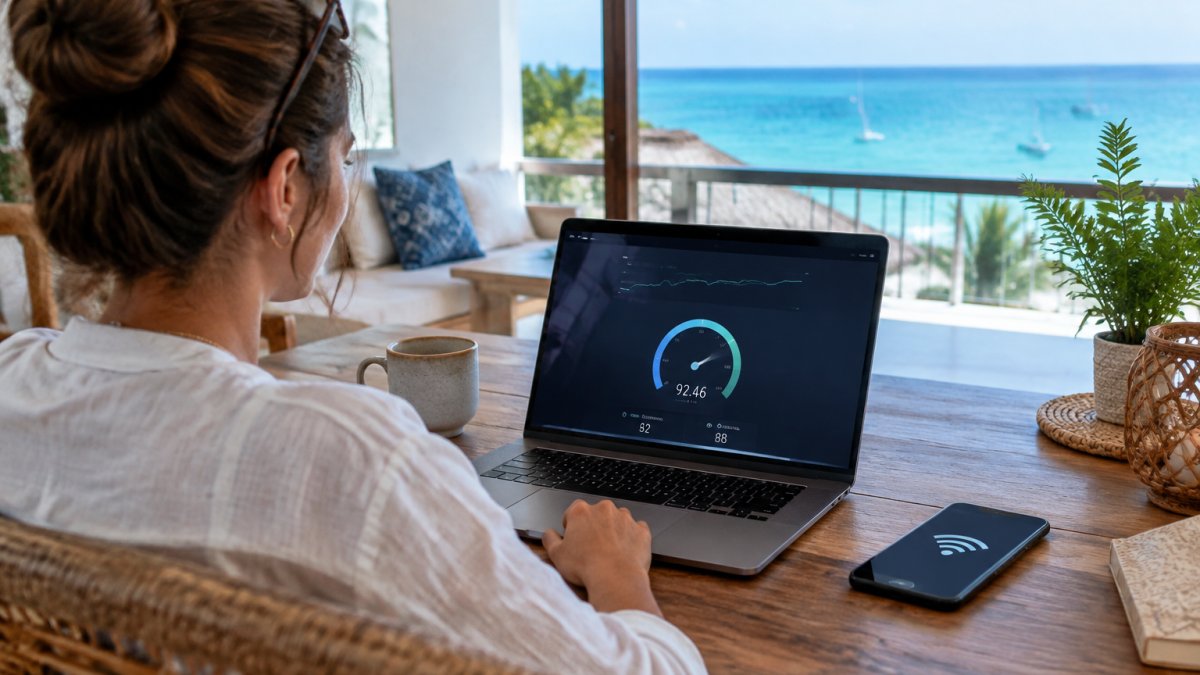
Send the host a short message with clear instructions. Most will comply, because it filters out problems before check-in.
What to ask the host to do before you book:
- Run the test on a laptop connected to the apartment Wi-Fi, not on mobile data or a wired connection.
- Place the laptop in the main living area, within two to three metres of the router, with no other apps running.
- Pause streaming, downloads and video calls on every device during the test.
- Run three tests in one sitting, one minute apart, and send all three screenshots rather than the best one.
- Repeat the set from the bedroom or desk you plan to work from, with the door closed.
- Repeat the whole set morning, afternoon and evening, and send the timestamps.
That last step matters more than people expect.
Same-Room Baseline Test
The same-room test gives you the apartment’s best-case number, the figure a host is most likely to quote.
Ask for download and upload in Mbps, ping in milliseconds and, if the tool shows it, packet loss. Any free speed test shows these on one screen.
Write the numbers down. A baseline that looks strong at 10am but collapses at 8pm is a warning, not a green light.
Room-by-Room Signal Check
A strong living room signal does not guarantee a usable bedroom.
Ask the host to test in each room you plan to work from, at your intended desk, with the laptop in the position you would actually use it.
Watch out: a host may test next to the router and call it done. Ask for the bedroom figure separately, in writing.
On-Arrival Retest: Repeat the Same Protocol Yourself
The pre-booking test is a filter, not a guarantee. On arrival, run the identical protocol on your own laptop before you unpack your work gear.
- Test in the living area, then at your desk, then in the bedroom.
- Run three tests per location, one minute apart, and note the lowest figure, not the highest.
- Repeat morning, afternoon and evening on your first full day.
- Record each result with the time and room in a simple note or spreadsheet.
The lowest figure across a day is the one that predicts whether calls hold. A connection that peaks at 40 Mbps but dips to 4 Mbps in the evening will feel worse than a steady 12 Mbps line.
Recording Results So They Mean Something
A screenshot folder is not a record. Keep a simple log with five columns: date, time, room, download, upload, ping, plus packet loss if your tool reports it.
Three rules keep the record honest:
- Use the same tool and the same laptop for every test, so the numbers compare fairly.
- Test on a laptop where possible; phones can report lower figures because of their own Wi-Fi hardware.
- Screenshot each result with the time visible, and keep the screenshots alongside the log.
If you are testing before booking, ask the host to send the log in the same format. A host who can produce a dated, room-by-room record has usually dealt with remote workers before.
Wi-Fi Speed Test Tools That Work on Any Device
Any reputable speed test gives you the three numbers that matter. You do not need paid software.
The Ookla Speedtest service is the most widely used option and runs in a browser or as an app.
For a fuller picture, ask the host to also open a video call and report whether it held. A speed test measures a quiet moment; a live call shows what happens under real load.
Three practical rules for any tool:
- Use the same tool for every test, so the numbers compare fairly.
- Test on a laptop where possible; phones can report lower figures.
- Screenshot each result with the time visible.
Reading Your Results: What Download, Upload and Ping Mean in Practice
Download speed moves data toward you. Upload speed sends data away from you.
For most remote workers, upload, ping and packet loss matter more than the headline download figure.
Here is a rough guide to what each number supports:
| Metric | Low | Workable | Comfortable |
|---|---|---|---|
| Download | Under 10 Mbps | 10-25 Mbps | 25 Mbps and up |
| Upload | Under 3 Mbps | 3-8 Mbps | 8 Mbps and up |
| Ping | Over 150 ms | 60-150 ms | Under 60 ms |
| Packet loss | Over 2% | 1-2% | Under 1% |
These are practical thresholds, not official standards. A writer uploading text files needs far less than a designer sending large files.
Ping is the quiet dealbreaker: high latency makes calls feel laggy even when raw speed looks fine.
Matching Numbers to Real Activities
Translate the metrics into the tasks you actually do:
- Email and documents: 5 Mbps download, 2 Mbps upload is enough, with ping under 150 ms.
- Video calls all day: 10 Mbps download, 5 Mbps upload, ping under 100 ms and packet loss under 1%.
- VPN use: a VPN adds overhead and often reduces throughput, so treat your call threshold as needing roughly double the headroom.
Add a margin if more than one person will use the connection. Two people on calls at once split the same pipe, and a connection comfortable for one is workable at best for two.
Reading Peak-Hour Variation Across Repeated Tests
A single test at 10am tells you almost nothing about 8pm. Island networks feel the squeeze when residents and guests all log on at once, and only repeated readings reveal it.
Lay your log out by time of day and look for three patterns:
- Steady line: morning, afternoon and evening figures within about 30% of each other. This is the pattern you want.
- Evening dip: evening figures fall to half or less of the morning figure. Workable for email, risky for calls.
- Erratic line: figures swing widely within the same hour. This usually points to a congested local network or a weak Wi-Fi signal, not the internet plan alone.
Watch out: a host may send only the best of three evening tests. Ask for all three, and judge the line by its lowest figure, not its highest.
Local Factors That Change the Result
Before you blame the internet plan, rule out the local network. Router location, walls, connected users, the device’s Wi-Fi capability and the Wi-Fi band all affect a test independently of what the building pays for.
A laptop on 5 GHz close to the router will usually report a higher figure than a phone on 2.4 GHz in the next room. That is the local setup, not the plan. When a host’s numbers look better than yours, ask which band and device they used before concluding the connection has degraded.
Wi-Fi Upload Speed for Video Calls and Online Work
Upload speed is what carries your voice and face out of the apartment.
Video calls need a steady upload more than a fast one. A connection that swings between high and low upload produces frozen video and dropped audio.
If you plan to work from the apartment daily, look for a bookable space that states its setup clearly. Our Zanzibar, Fumbatown 2 Bed Ocean View Apartment includes a dedicated workspace with reliable Wi-Fi, which is the arrangement to look for if calls fill your calendar.
Test at the desk you will actually use. A signal that works on the sofa may not reach the table by the window.
Internet Speed for Remote Work: Setting Realistic Thresholds
Set your minimum before you shop, not after. A clear threshold turns a vague “is this fast enough” question into a yes or no.
Match the number to your work:
- Email and documents: 5 Mbps download, 2 Mbps upload is enough.
- Video calls all day: 10 Mbps download, 5 Mbps upload, ping under 100 ms.
- Large file transfers or design work: 25 Mbps download, 10 Mbps upload.
Add a margin if more than one person will use the connection. Two people on calls at once split the same pipe.
For deeper guidance on matching accommodation to remote work, our digital nomad accommodation Zanzibar guide covers what to look for beyond the speed test alone.
Minimum internet speeds for common remote-work activities
Peak-Hour Slowdowns, Power Cuts and Backup Connectivity
A single test at 10am tells you almost nothing about 8pm. Island networks feel the squeeze when residents and guests all log on at once.
Ask the host for evening results specifically. If they cannot provide them, ask what the connection is usually like after dark.
Power cuts are the other local factor. Power cuts can affect connectivity, and a router without power is a dead connection regardless of speed. Ask two questions:
- Does the building have a backup power supply for common areas and routers?
- What is the mobile data fallback, and does the apartment have good reception on more than one network?
A local SIM with a data bundle is the standard backup. Treat it as essential, not optional.
Verifying a Host’s Advertised Speed Before You Arrive
Hosts quote their best number. Your job is to find the realistic one.
Cross-check the claim against evidence. Ask for dated screenshots, not a typed figure. Ask which room and which time of day.
For real examples of Zanzibar apartments whose Wi-Fi claims have been vetted, our review of Zanzibar apartments with reliable Wi-Fi is a useful starting point. If you want a curated list to compare and book, the Zanzibar vacation rentals with Wi-Fi guide covers the options in more detail.
For the wider picture on connectivity across the island, read our guide to reliable high speed internet for digital nomads in Zanzibar.
A quick checklist before you pay a deposit:
- Host sent three dated speed test screenshots
- Bedroom and workspace tested separately
- Evening result within 30% of the morning result
The gap between a listing that says “fast Wi-Fi” and a connection that actually carries your work is where most remote-work trips go wrong.
Frequently Asked Questions
What is a good internet speed for an apartment in Zanzibar?
For a Zanzibar apartment Wi-Fi setup, aim for at least 25 Mbps download and 10 Mbps upload if you plan to work remotely. That covers video calls, cloud file transfers and streaming on a couple of devices. If several people share the connection, look for 50 Mbps down and 20 Mbps up. Always run a Zanzibar apartment Wi-Fi speed test at different times of day, because evening demand can cut real-world speeds well below the advertised figure.
How can I test whether apartment Wi-Fi is reliable for video calls?
Focus on upload speed and ping, not just download. A Wi-Fi upload speed for video calls of 5 Mbps or more keeps a single HD call stable; 10 Mbps gives headroom for screen sharing. Ping under 100 ms keeps conversation natural. Run a test on the Wi-Fi speed test tools you trust, then make a five-minute test call at peak hour. If the call drops or audio lags, the connection is not reliable enough for daily remote work.
Should I run a Wi-Fi speed test at different times of day?
Yes. A single test at 10 a.m. can flatter a connection that collapses at 8 p.m. Run the same test three times: morning, late afternoon and evening peak. Record the numbers. A drop of more than 30 percent between morning and evening tells you the building or neighbourhood network is congested. For internet speed for remote work, the evening figure is the one that matters most, since that is when you are likely to be online.
What should I ask a Zanzibar apartment host about internet before booking?
Ask for the actual measured download and upload speeds, the internet provider, and whether the router is inside the apartment or shared. Request a screenshot of a recent speed test taken in the room you will use. Ask what happens during power cuts: is there a backup router or generator? Finally, confirm whether the connection is wired or wireless, and whether a wired connection is available for video calls.


